Setting Scout Research Preferences
Platform Education | Step by Step Guide
This action must be completed by an account Admin. Contact your Customer Success Manager or Implementation Manager for more details.
Steps to customize Research Preferences
Step 1
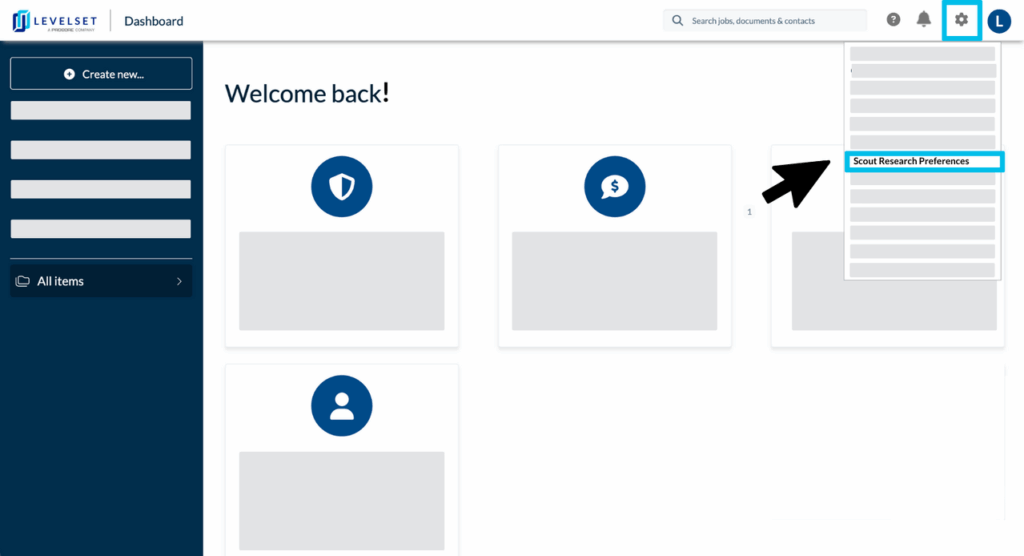
Click the settings gear icon in the top right corner of the Levelset page, and select Scout Research Preferences from the dropdown menu.
Step 2

Select Scout Research Preferences near the top of the page.
Step 3

Click Edit.
Tip: Access to certain research features depends on the research tier included in your subscription.
Step 4
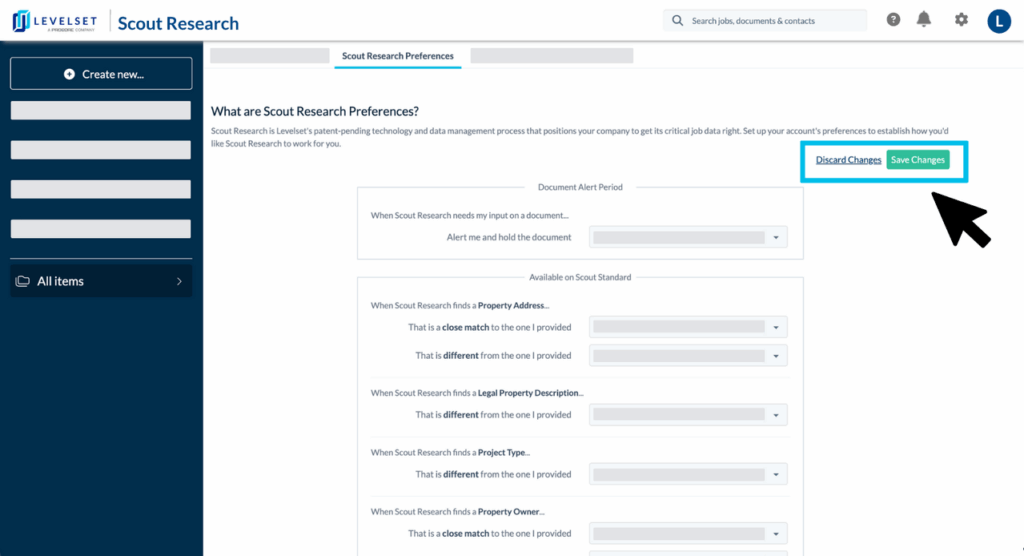
Update your preferences, and then select Save Changes.
Tip: Keep reading for best practices.
Scout Preferences Best Practices
Below are some helpful tips to keep in mind when setting your Scout Research Preferences, and/ or completing the Scout Ultimate Research form. Regardless of the tier of research included in your plan, it is important to be aware of the specific state requirements for your document to ensure the proper information is included. It is also best practice to complete all applicable research settings prior to any documents being created in the account.
Document Alert Period
Our default recommendation is set to [ 2 business days ] for the Alert me and hold the document field to ensure that your document has enough time for processing without missing any deadlines. Keep in mind that selecting [ until the document deadline ] may not allow enough time for the document to be processed.
Available on Scout Standard
With this tier, your document is ran through our advanced database search to check for missing Legal Property Description, Property Owner, and Project Type.
Best Practices:
- Select [ Use what Scout Research Finds ] for any fields that you anticipate may be be left blank at the time of data entry, such as Legal Property Description and any time you did not provide one.
- Select [ Use what Scout Research provides ] for a Close Match within the Property Owner and Property Address fields.
Keep in mind:
- Selecting [ Use Both ] for the Property Owner field will send the document to your original contact plus the contact that Scout Research finds (when applicable). Postage fees apply to all mailed documents.
Available on Scout Pro
This tier, along with the Scout Ultimate tier of research, allows your document to be ran through our advanced database search to check for a missing or incorrect General Contractor. If the proper information is not found during the initial database search, further review from a Scout Researcher may apply.
Best Practices:
- Select [ Use what Scout Research Finds] for any fields that you anticipate may be be left blank at the time of data entry, such as any time you did not provide one.
- Select [ Use what Scout Research provides ] is best practice for a Close Match within the General Contractor field.
Keep in mind:
- Selecting [ Use Both ] for the General Contractor field will send the document to your original contact plus the contact that Scout Research finds (when applicable). Postage fees apply to all mailed documents.
- Advanced Scout Research Settings are available, for this tier of research, which allows for multiple rules to apply under the specific conditions you select based on each location, Line of Business, State, etc.
Available on Scout Ultimate
This is where outreach comes into play! In addition to running your job through our advanced database to search for ownership, project type and legal property descriptions, our team will also work to confirm General Contractor, Surety and Bonding, and Lender information, as needed. If the proper information is not found during the initial database search, our teams get creative to fill in gaps, including calling and emailing parties on your job.
Best Practices
- Select [ Use what Scout Research Finds ] for any fields that you anticipate may be be left blank at the time of data entry, such as any time you did not provide one.
- Select [ Use what Scout Research provides ] is best practice for a Close Match within all applicable fields.
Keep in mind
- Selecting [ Use Both ] for any applicable fields will send the document to your original contact plus the contact that Scout Research finds (when applicable). Postage fees apply to all mailed documents.
- Advanced Scout Research Settings are available, for this tier of research, which allows for multiple rules to apply under the specific conditions you select based on each location, Line of Business, State, etc.
Scout Ultimate Research Form
This form is typically given during the onboarding process by either your Implementation Manager or your Customer Success Manager. This form must be completed before Ultimate Research benefits can be applied. Please reach out to your Customer Success team with any questions, or to update your form.
FAQs
Q1: When should Scout Research Preferences be configured?
Answer: Scout Research Preferences can be edited at any time, but any changes made will not affect documents that have previously been created. Ideally, initial configurations should be set before any documents are created.
Q2: Are their separate settings based on individual Scout Research tiers?
Answer: Basic settings can be found on the Scout Research Preferences page for every research tier, however, users with access to Ultimate Scout Research should contact their Customer Success Manager or Implementation Manager for additional options and settings.
Q3: How does selecting “Use what Scout Research Finds” affect my research notifications?
Answer: For fields where “Use what Scout Research Finds” are selected, our research team will simply fill in the information they find in lieu of sending you an alert, therefore allowing your document to pass through research without being held. In contrast, if “Let me Choose” is selected, you will receive a research alert with suggestions from our research team, and your document will be held until the alert is resolved or the alert expires.
Q4: What does a “close match” mean?
Answer: Research findings are considered a Close Match when a contact name or location found by our scout research team has a slightly different spelling, capitalization, or is an extended version of what was originally entered.
Contact Information
For questions or concerns you can reach out to our Five Star Support team at: mail@levelset.com