Order a Document
Platform Education | Step by Step Guide
Please be advised that Levelset’s platform and resources may often refer to jobs and projects interchangeably.
Steps to Key-in Jobs/ Project Data
Step 1

Option 1: Type the name or identification number of the project you would like to view, into the search bar.
-or-
Option 2: Click into the project from the All Jobs tab.
You will be taken to a Job Summary page, generated based on the data entered for that specific project.
Tip: Be sure to check all project details for accuracy before ordering a document.
Step 2
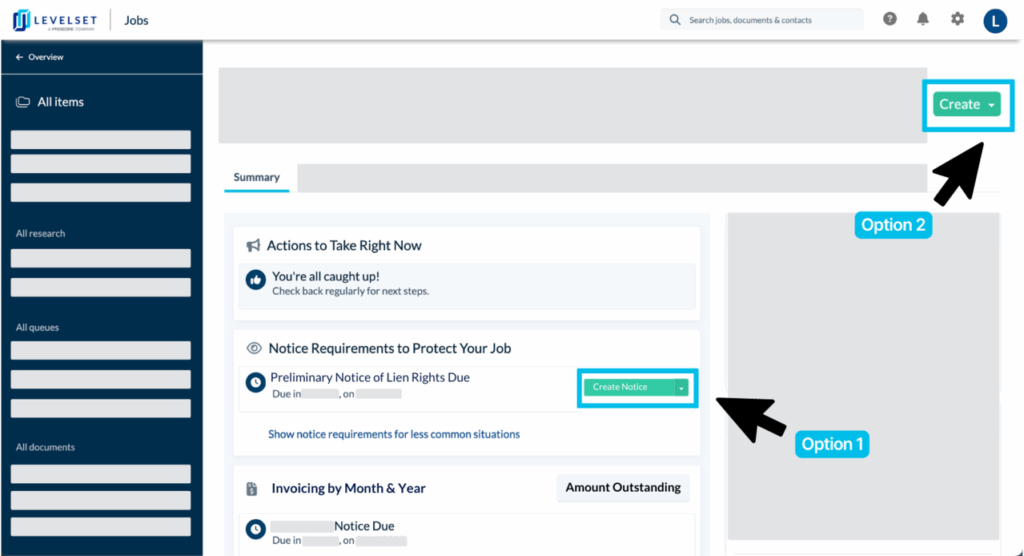
Option 1: After navigating to the job, first check under the “Summary” to see if the desired document is displayed there. If so, hover over the document a click Create.
-or-
Option 2: If the desired document is not on the summary page, click the Create > Document buttons located in the top, right section of your screen. Locate the intended document using the search feature.
Tip: Keep in mind that most documents may be created, and even sent out, automatically, once document rules have been properly configured. Visit the guide here for more details.
Step 3

Levelset will walk you through the steps to fill in the required information for the document. When complete with each step, click Next.
Step 4

Confirm or enter the contacts that are required to be listed on the document.
Required contacts will have a yellow Required box displayed.
If a contact is required and you do not know who the contact is, check the I don’t know box and our Scout Research team will help to confirm the information. When complete with each step, click Next.
Step 5

Confirm the contacts who will be receiving the document. Contacts can receive the document via mail and email if an email address is included.
You can add additional, external contacts on the job as recipients.
There is an Email Options section at the bottom that allows you to add a note to all of the document emails sent. You can also send additional email copies of the document to internal parties, by adding in email addresses under the “Send Copy to” section. When complete with each step, click Next.
Step 6
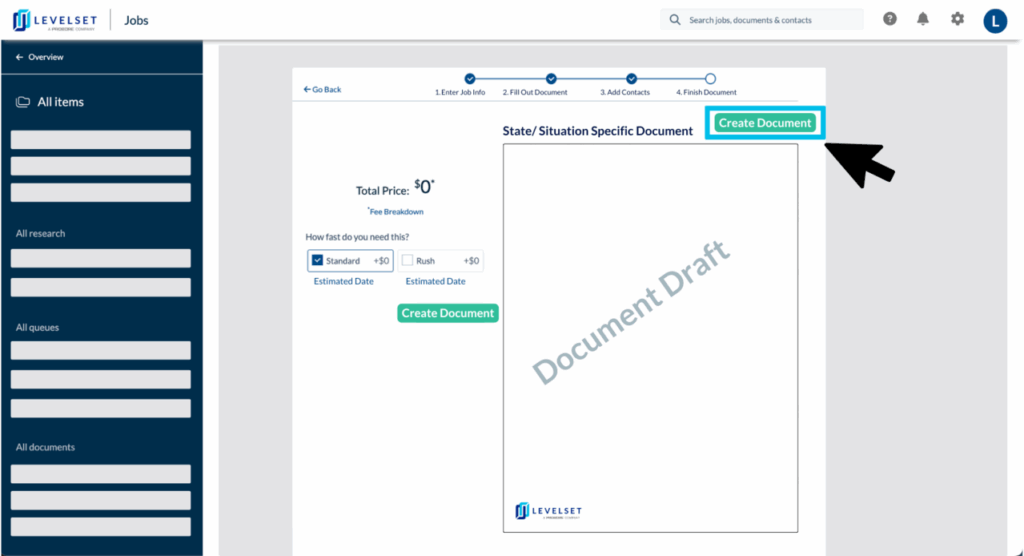
Select whether or not you would like to rush the document. This should be based on the deadline for the document (if there is one) and the estimated postage date listed under the standard and rush options.
You may also have the opportunity to upgrade the research level of the document, if there were required fields that you were unable to fill in, and depending on your current research tier.
FAQs
Q1: Can I add additional information onto a document after it has been ordered?
Answer: Once a document has been ordered, the Talk to Scout feature allows users to communicate with the Scout Research team who will be working on the research for the document, but it is important to note that this features closes when a document is mailed out. Users may attach additional information and/or files that may be useful to the researcher, within the Scout Research Alert screen, from the Scout Research tab on any Job Summary Page and/ or through the Create > Add Files button from any Job Summary Page.
Q2: What happens to my document after it is ordered?
Answer: Visit our Managing Ordered Documents Training Site for details on viewing document details, canceling an order, sending a retraction, and more.
Q3: Why are their additional fees on my document?
Answer: Depending on the document and the details of your subscription, documents may be subject to processing fees, as well as postage fees for mailed documents. Visit the Postage Fund Tracker to check your balance.
Contact Information
For questions or concerns you can reach out to our Five Star Support team at:mail@levelset.com