Managing Research Alerts
Platform Education | Step by Step Guide
Steps to managing Scout Research alerts
Step 1

From your Account Dashboard, click into All Items at the bottom of the navy navigation bar, located to the left of the screen.
Step 2
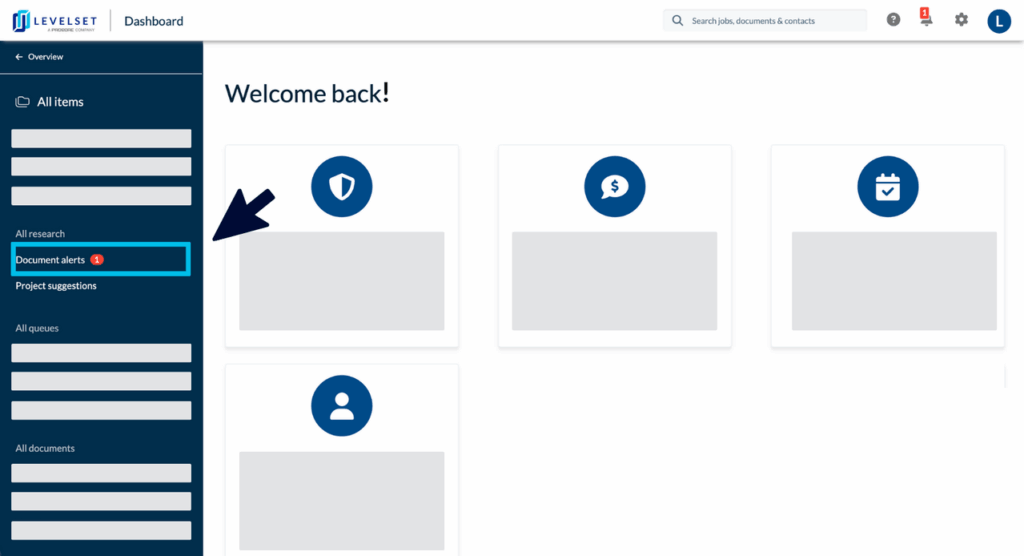
Locate the All Research section within the navy navigation bar, and select Document Alerts. New alerts will be indicated by a red notification icon, displaying the number of alerts.
Step 3

View active alerts listed for each indicated project. Use the Submit button to add additional information to the project, and/or to indicate the correct selection for suggestions. Additional actions available are: Review Activity (and additional files), Add a Comment, and to select [ I don’t have this ] if additional data is unavailable.
Tip: Be sure to scroll down your webpage, completely, to view all comments and/ or suggestions left by your researcher.
FAQs
Q1: Can I add additional information onto a document after it has been ordered?
Answer: Once a document has been ordered, the Talk to Scout feature allows users to communicate with the Scout Research team who will be working on the research for the document, but it is important to note that this features closes when a document is mailed out. Users may attach additional information and/or files that may be useful to the researcher, within the Scout Research Alert screen, from the Scout Research tab on any Job Summary Page and/ or through the Create > Add Files button from any Job Summary Page.
Q2: Can I adjust the amount of time I have to review a research alert?
Answer: The amount of days a user has to view and take action on each alert can be edited by an admin prior to a document being ordered, by visiting the Scout Research Preferences tab located under the Settings gear within each Levelset account. From there, admin can adjust the length of time users have to manage research alerts before they expire.
Q3: Can I have the information on my document updated without having to manually approve each alert?
Answer: Admin can preselect whether or not documents should be updated automatically by research, or be sent to the alert queue each time. These settings are configured based on research tier and the data field type. This can be done by visiting the Scout Research Preferences tab located under the settings gear within each Levelset account.
Q4: Will I receive an email for each research alert?
Answer: Our Research Team will alert you via email if email notifications are enabled within the account. Please check My Profile settings to adjust email notifications preferences, and make sure to select to be notified On All Jobs.
Contact Information
For questions or concerns you can reach out to our Five Star Support team at:mail@levelset.com