Create a Job
Platform Education | Step by Step Guide
Please be advised that Levelset’s platform and resources may often refer to jobs and projects interchangeably.
Steps to Key-in Jobs/ Project Data
Step 1

From your Account Dashboard, hover over Create new, located at the top of the left, navy navigation bar, and click Job.
Tip: New jobs can also be added by visiting the All Jobs page, and clicking into the green +New Job button on the top, right of the screen. This view will help prevent against duplicate jobs by showcasing all active jobs in one area.
Step 2

Enter in the job name, number, address, and your company’s role on the job. If you have multiple locations or lines of business configured within your Levelset account, select which location and/or line of business this job will apply to.
Tip: Accuracy is essential when selecting project roles, as it is used later to determine the project’s workflow
Step 3
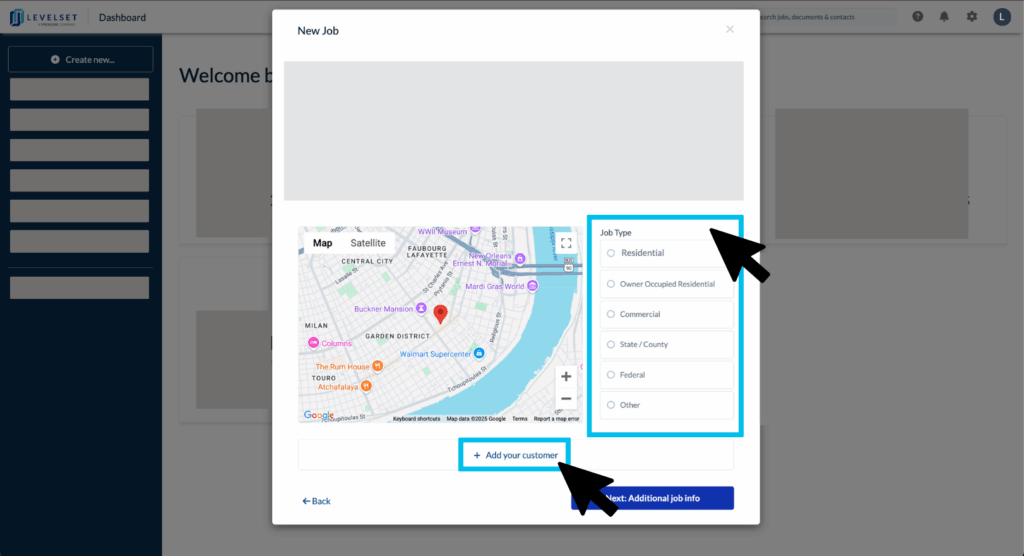
Confirm the Job Type and then click the Add your customer box at the bottom of the job creation box.
Tip: Note that Levelset may make Property Owner or other role suggestions based on job data that we have collected.
Step 4
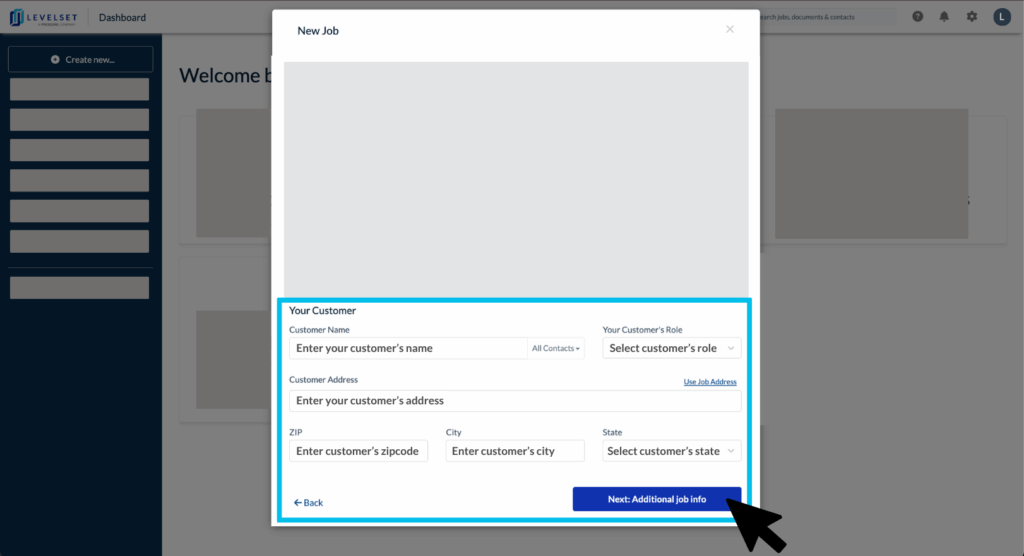
Enter your customer’s name, role on the job, and address.
Tip: For Levelset purposes, your customer’s role will typically be whichever role is directly above your company’s role within the payment chain. Please consult your Levelset Customer Success Manager before selecting “Other” as your customer’s role.
Step 5

Enter in additional job information including the project financial information, dates, and a description of the labor/materials provided.
Tip: Project dates are necessary to calculate document deadlines; all information can be updated prior to sending out documents.
Step 6
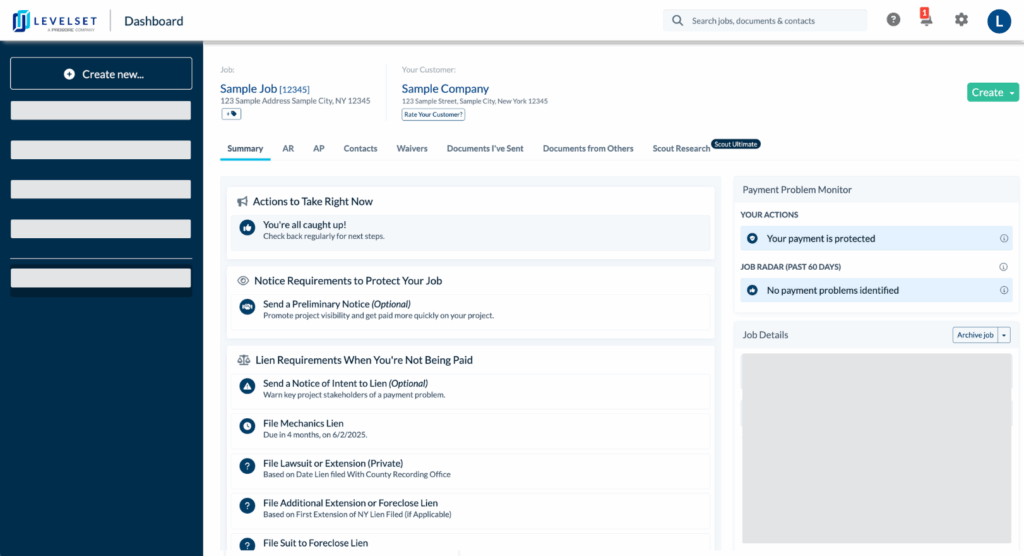
Once the job is created, Levelset will take you to the job’s Summary Page where you can review your deadlines and start exchanging documents.
FAQs
Q1: How do I find a job that was previously created in Levelset?
Answer: To find a job that was previously created, type the project name, project identifier, or project address in the search bar, located on the top, right of your screen. A dropdown menu will appear listing all jobs that match the search criteria, regardless of Active or Archived status. An additional navigational option is to click into All Jobs and filter through, sort, or scroll, to locate the intended job.
Q2: Can I bulk upload job data?
Answer: Yes! Spreadsheet imports through either our DIY (included in your account) or Custom Spreadsheets (add-on) features may be right for you. Visit each of the embedded links to learn more.
Q3: Is there a way to integrate with another project management software to import job data?
Answer: Yes! Directly keying in job data is only one of the several data entry methods we offer. Integrations with Quickbooks Online , Quickbooks Desktop , and Procore , may be possible depending on the configurations set for each respective program. Spreadsheet imports are also a possibility in most cases. Meeting with, or providing a data sample to, our Implementation team is the best way to determine which data entry method is right for you.
Q4: How do I change or edit project information?
Answer: Project information can be edited from each job’s Summary Page by clicking the arrow next to [Archive Job]. Keep in mind that information such as project roles, project type, and job address must be finalized before a document is created, and cannot be edited after a document is sent out. Visit our How to Edit a Job guide to learn more.
Q5: When should I enter project information into Levelset?
Answer: For the most accurate lien rights management experience, we recommend entering project data as soon as it becomes available to you. Many of our most successful partners tend to enter project data into our system prior to beginning work on a project. When setting up document automations, the timing in which you enter data into Levelset should be considered. Several details like furnishing dates, job name, and contract amount, can be edited at any time.
Q6. How do I enter jobs into Levelset if I am missing the exact address?
Answer: First, put any information you have about the job site location (cross streets, delivery instructions, etc.) in the address field. We’ll need a zip code (it’s a required field) so if you don’t have it, we recommend Googling the location to get an approximate one. We will confirm this information in our research. If available, enter additional information about the job type in the Project Nickname or
Description of Work (ex: “telecommunications job on cell tower”). The more information you
can provide, the better, so if you can send us any supporting documents like maps, Notices of
Commencement, or deeds, it is incredibly helpful to our research team as they confirm project
details
Contact Information
For questions or concerns you can reach out to our Five Star Support team at:mail@levelset.com