Adding & Viewing Project Files
Platform Education | Step by Step Guide
Please be advised that Levelset’s platform and resources may often refer to jobs and projects interchangeably.
Steps for Adding Files Prior to Research
Step 1
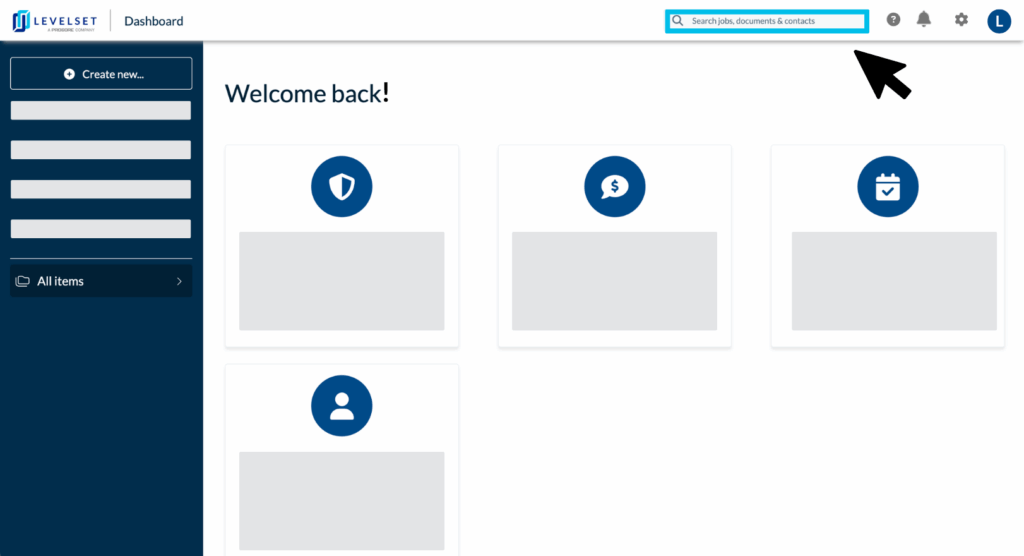
From your Account Dashboard, type in the name or job number of the project you would like to access into the search bar, then select it from the drop-down menu.
Tip: You may also locate your project through the All Jobs tab
Step 2

Hover over the [ Create ] button, located on the top right side of the job’s Summary Page, and select [ File ].
Step 3

Upload any relevant files, then click [ Done ].
Steps for Adding and Viewing Files after Research has Begun
Step 1

From the job’s Summary Page, click into the [ Scout Research ] tab.
Tip: Please see Step 1 of the previous section for assistance locating your job’s Summary Page.
Step 2
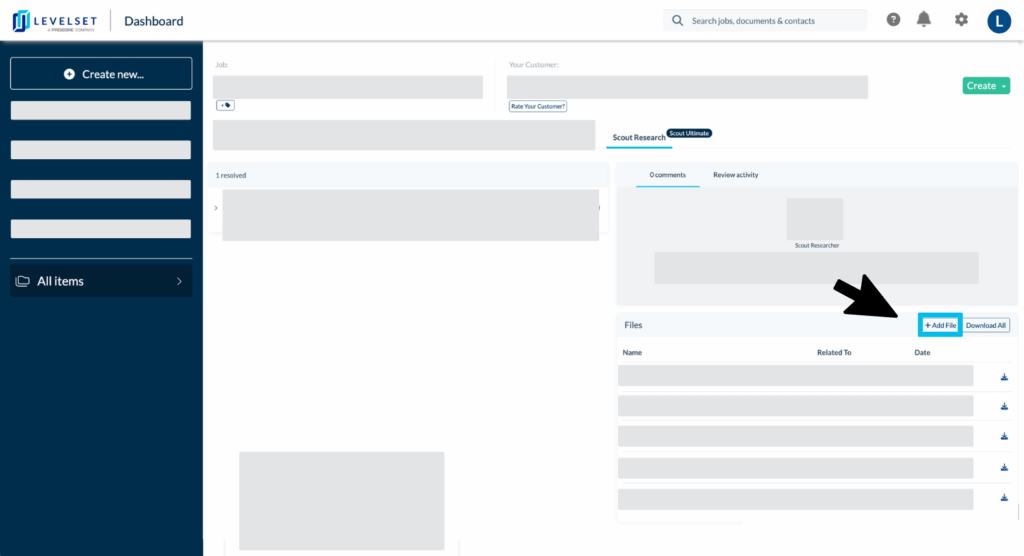
Located under the Files section, click [ +Add File ]. You will then be prompted to upload files. Next, click [ Done ].
Tips: Once research has started on an order, the researcher won’t receive a notification that additional files have been uploaded. To ensure they see the files you’ve uploaded, please leave a comment under the Scout Research tab notifying the researcher of any additional uploaded files. Additionally, once a research ticket is closed, please contact support when adding additional files.
Step 3

Click into How did Scout Research find this, within the research alert, or toggle to Review Activity for information on the sources Scout Research used to find additional information to add to your project. Both of these fields lead to specifically curated and relevant information for your project.
Tip: Be sure to toggle to Comments to view any notes exchanged between you and your researcher.
Step 4
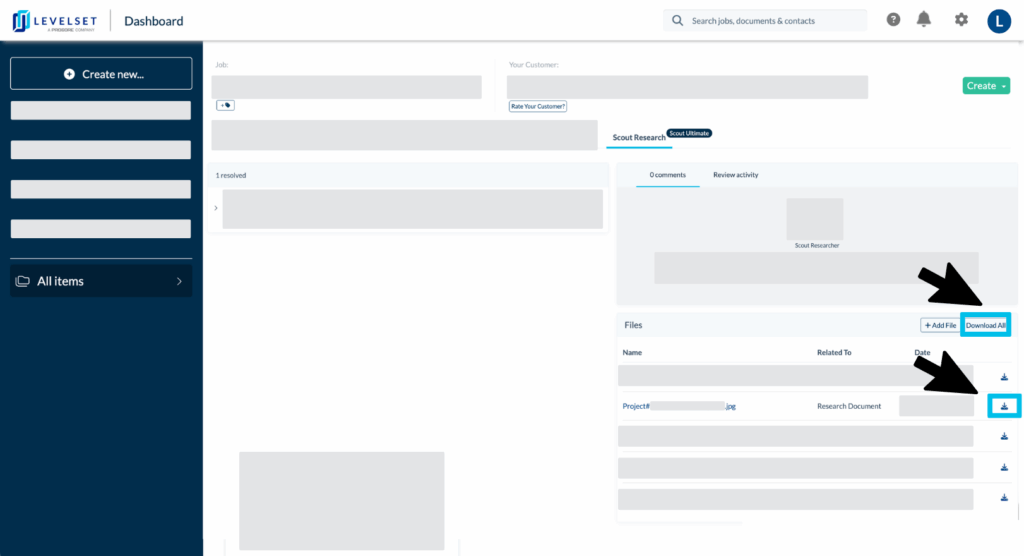
Located under the Files section, click into the hyperlink or download icon of the file you would like to view, or click [ Download All ]. This section includes both files Scout Research adds, in addition to files added by you or another user on the account.
FAQs
Q1: What does the research team do with the additional files I upload?
Answer: It is recommended to upload any documents that may assist Scout Research in finding additional information for your project. This is especially the case in the event where certain fields are left blank during data importing. These files will be used by research in addition to the job nickname, and other specific information you include for the job.
Q2: What type of files are recommended for me to add onto a project?
Answer: Recommended documents vary by project role or document type, and include, but are not limited to, site plans, bid documents, invoices, and contracts.
* Please contact support if adding files after the research window has closed.
Q3: What type of files might the research team add onto my job?
Answer: Scout Research may add and files that assist them in offering suggestions to your project information. Files added may include, but are not limited to, property reports, screenshots of parcel info, site plans, and any documents confirming address information.
Q4: Can all parties on my project view the files that research adds?
Answer: No, the project files added within your job’s Summary Page by Scout Research will not be attached to the document(s) being sent out, and are included for visibility purposes to accompany any suggestions that Scout Research makes to your project information. These details are viewable by anyone within your company’s Levelset account with access to that specific project.
Contact Information
For questions or concerns you can reach out to our Five Star Support team at: mail@levelset.com